
Related Posts



[Weekend Wines] what’re you drinking?


Additional Posts in Excel Genius

Visual Storyteller


Still don't have xlookup. #fomo
New to Fishbowl?
Download the Fishbowl app to
unlock all discussions on Fishbowl.
unlock all discussions on Fishbowl.


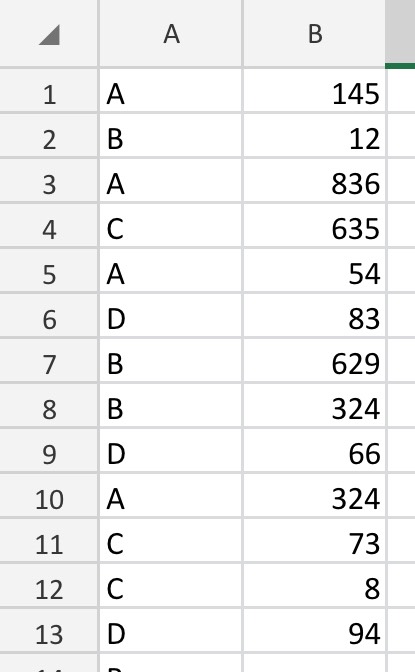
When you’re experiencing issues with data appearing under multiple categories or nonsensical groupings in a PivotTable, it often boils down to a few common problems or misconfigurations. Here’s what might be going wrong and how you can fix it:
1. Duplicate Data: Ensure your data doesn’t have duplicates or very similar entries that could be interpreted as belonging to different categories. Double-check your source data for any accidental duplication.
2. Grouping Errors: If you’re grouping data (dates, numbers, etc.), make sure the grouping is correctly set up. Incorrect grouping can cause data to appear in unexpected categories. For dates, ensure all entries are actual dates (and not text) in Excel. For numeric data, check the grouping intervals.
3. Data Source Range: If you’ve added new data to your source but outside the initially selected range for the PivotTable, it won’t automatically update to include the new data unless you refresh and ensure the PivotTable source range is updated to encompass the new entries.
4. Blank Cells and Errors: Blank cells or cells with errors can cause unexpected behavior in PivotTables. Ensure your data is complete and free of errors. Blank cells in key columns might be grouped together or cause data to appear under incorrect categories.
5. Field List Confusion: Double-check your PivotTable field list. Sometimes, fields might be dragged to an incorrect area (e.g., a field meant for “Rows” ends up in “Values” or vice versa), which could cause data to display incorrectly.
6. Cache Issues: Excel caches data for PivotTables, and this can sometimes lead to strange behavior, especially if you’ve made significant changes to your data. Clearing the PivotTable cache or creating a new PivotTable might help.
7. Text Number Issues: Sometimes, numbers stored as text can cause grouping issues. Ensure that all numerical data is actually formatted as numbers in Excel.
To address these issues, you might:
• Refresh your PivotTable: Right-click within your PivotTable and select “Refresh”. This can solve issues if data has been updated or corrected.
• Check your data source range: Go to PivotTable Analyze > Change Data Source to ensure it encompasses all your relevant data.
• Clear PivotTable cache: Create a new PivotTable if you suspect cache issues might be affecting your data representation.
• Review your data for consistency: Check for and correct any duplicate entries, errors, or formatting issues in your source data.
Start by investigating these potential issues one by one. It’s often a small oversight that leads to big headaches with PivotTables.
Don’t thank me, thank ChatGPT
This is genuinely really helpful, thank you.
Coach
What are u doing wrong?
Using pivot tables
Could also be your data is scrambled. If you tried sorting with filters on and the filters don't extend all the way to the end of your data it can sort some columns without sorting others and scramble the data.
Double click into those parts of the pivot to look at the data and see if that's the case.