
Related Posts


It can be really useful to chat to someone who's already working in a role you're interested in. This mentoring/messaging platforms allows you chat to UK professionals and you can filter by IT to see those in Tech. It's called Connectr (formerly My Kinda Future) https://inspire.connectr.co.uk/BrighterFutures/mentors



Bowl Leader
Additional Posts in Excel Genius
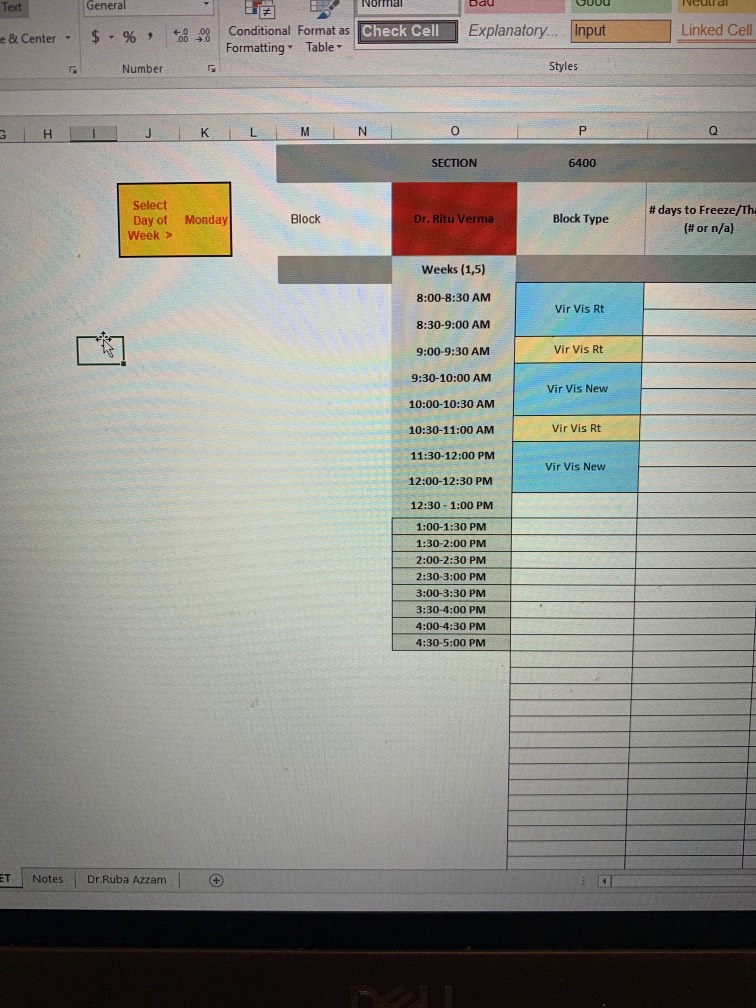
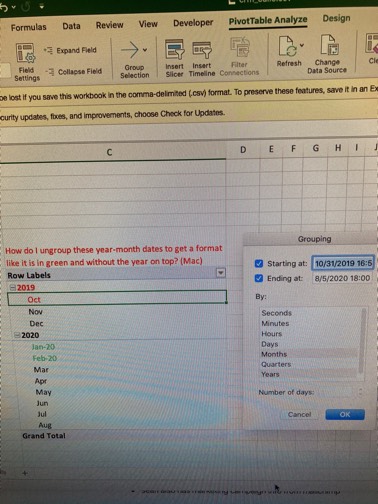
Would anyone be willing to teach me vlookup?


Visual Storyteller
Anyone know what these badges are?



New to Fishbowl?
Download the Fishbowl app to
unlock all discussions on Fishbowl.
unlock all discussions on Fishbowl.


Steps:
1. Create a new flow in Power Automate:
• Go to Power Automate and sign in.
• Click on “Create” in the left sidebar.
• Select “Instant cloud flow” or “Scheduled cloud flow” depending on whether you want to trigger the flow manually or on a schedule.
2. Add a trigger:
• For an instant flow, you can use the “Manually trigger a flow” trigger.
• For a scheduled flow, use the “Recurrence” trigger to set how frequently the flow should run.
3. Get the files from the folder:
• Add a new step and search for “List files in folder” under the OneDrive for Business or SharePoint connector, depending on where your files are stored.
• Select the folder where your .xls files are located.
4. Loop through each file:
• Add an “Apply to each” control to iterate through the files listed in the previous step.
5. Check file extension and convert:
• Inside the “Apply to each” control, add a “Condition” to check if the file extension is .xls.
• If the condition is true, add an action to “Convert file” using the “Excel Online (Business)” connector.
• Set the “File” field to the file content from the previous step and the “Destination File Name” to the desired .xlsx name and location.
6. Save the converted file:
• Add a step to “Create file” using the OneDrive for Business or SharePoint connector, setting the file path and file content to save the converted .xlsx file.
7. Delete the original .xls file (optional):
• If you want to remove the original .xls files after conversion, add a “Delete file” action within the “Apply to each” loop.
8. Test and run the flow:
• Save the flow and test it by running it manually if you set it as an instant flow or wait for the next scheduled time if you set it as a scheduled flow.
Is that convert file action new? I recently needed to convert from xlsb to xlsx and could get Power Automate to do it.
File > Save As
Why avoid VBA in this case?
Data query
Apple
An apple a day keeps the data doctor away?
Imagine you could change the file extensions via a BAT